

Best practices guide
– by Ermin Hamidovic (Mastering Engineer, Author of The Systematic Mixing & Recording Guides, Director @ SubMission Audio)
DoubleTap is an easy-to-use plugin, designed for a serial workflow, going from one knob to the next in sequential order. It's based specifically on my personal mixing workflow, and boils down several processes into one simple UI. It allows you to dial all the compression and dynamics control that your bass needs in around 1 minute.
Step 1
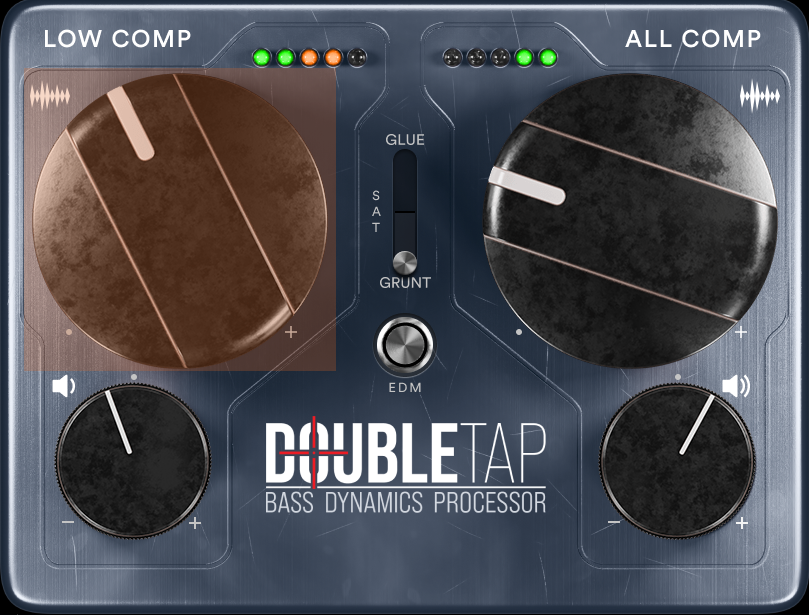
Begin by using the Low Comp to control the low frequencies in the tone. As you move the knob, you'll notice the corresponding LEDs begin to flash along with the compression effect. Once you're satisfied that the low frequency notes aren't poking around, let off the compressor a bit. Find the setting which allows you to maintain the least amount of compression, while still maintaining complete dynamic control over the low frequency notes. Normally this is somewhere around 1 or 2 orange lights at peak.
Step 2
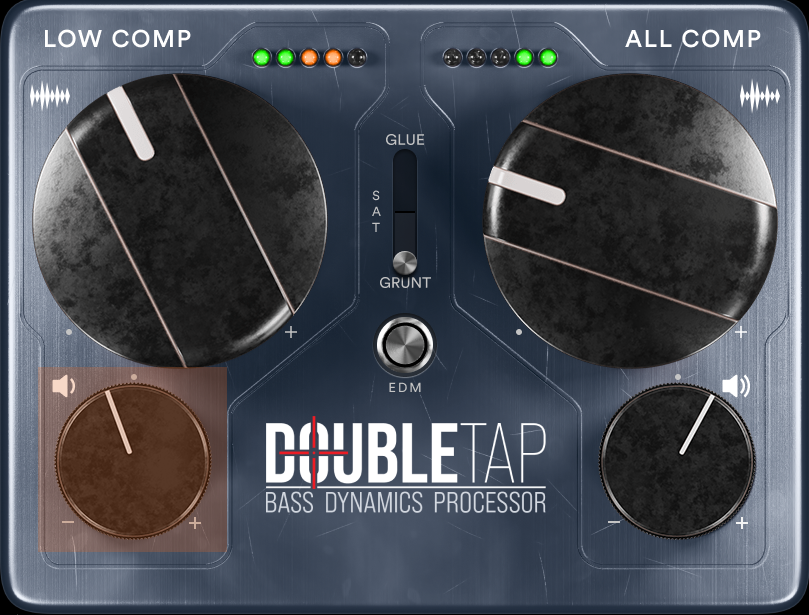
After you dial the Low Comp just right, use the Low Gain knob beneath it in order to balance the low frequencies back into alignment with the mids and highs. Occasionally the auto-gain used as part of the compressor can knock the level out slightly, so you will need to manually adjust this for the overall balance to be just right.
Step 3
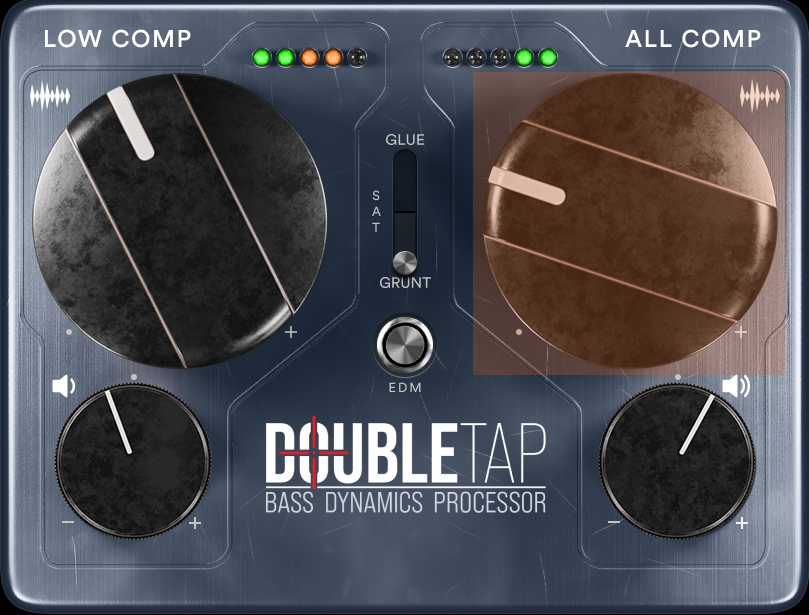
Turn up the All Comp knob. This controls the entire tone. As you move the knob, aim to have the LEDs sit either in the two green. If the tone is still too peaky and dynamic, push it into the orange. Once the LED turns red, you're hitting the limit.
Step 4
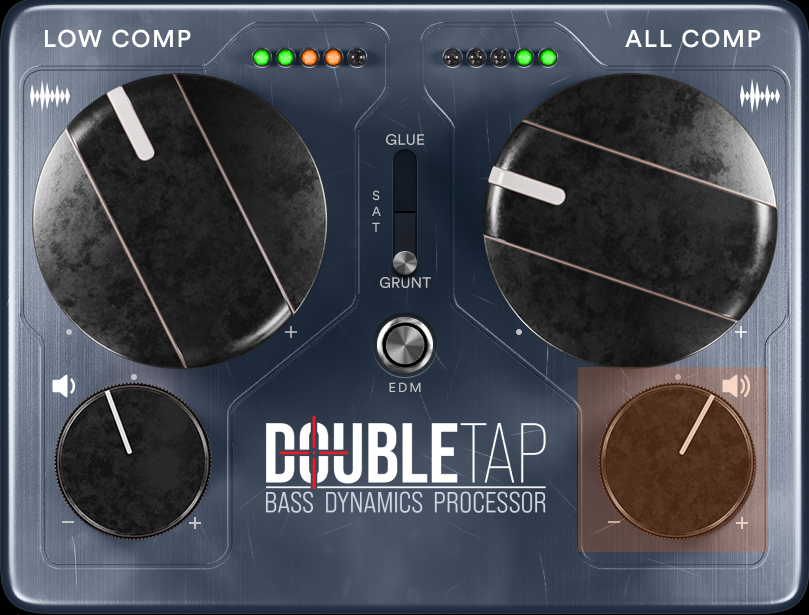
Adjust the little All Gain knob beneath it to get the output volume just right.
Step 5
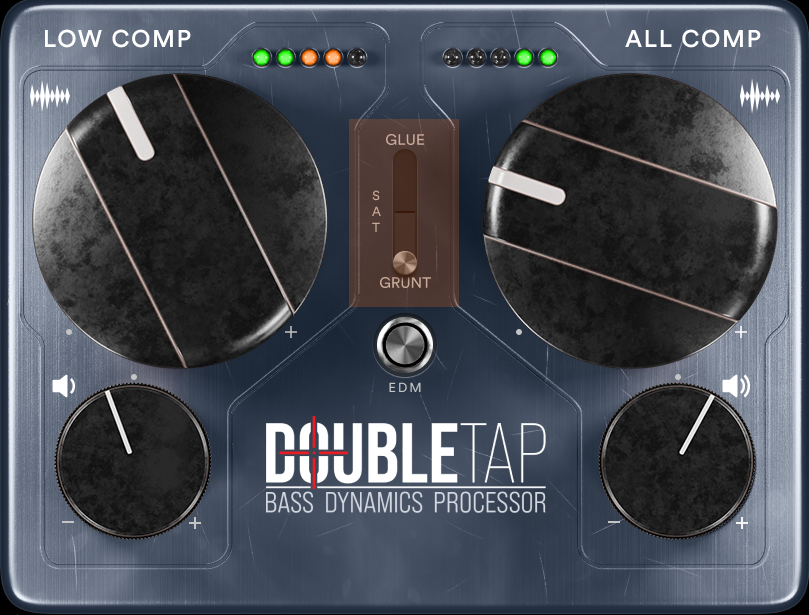
Listen to the resulting bass tone with your mix running, and try out the two different Saturation modes. Glue will provide a subtle effect, like a transparent analogue mixer channel might. It will make the bass less peaky. Grunt, meanwhile, is a more audible effect, giving the bass a really nice push to make its presence felt in the mix.