Overview

GUI

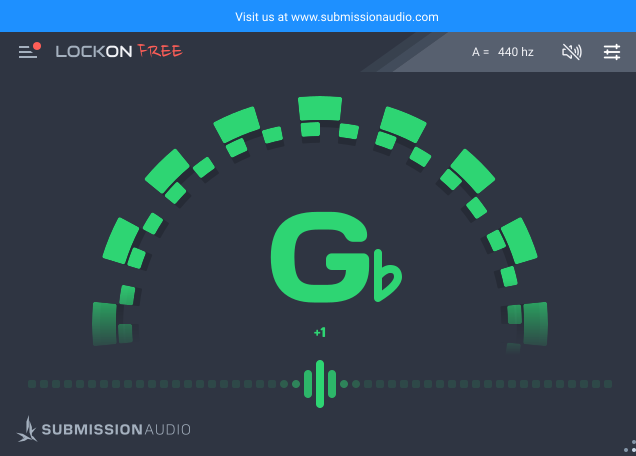
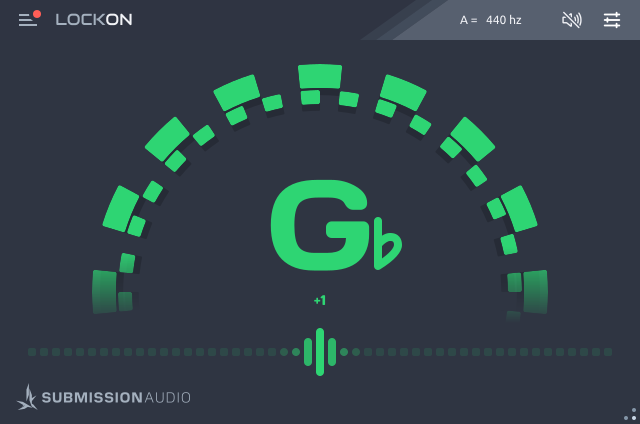
LockOn is an attempt to create the ultimate pinpoint precision tuner in a supremely minimalist, utilitarian package. Tracking down to 16Hz, and operating in both fast response, and slower error-rejecting modes, it provides reference-grade ultra high resolution tuning for any instrument.

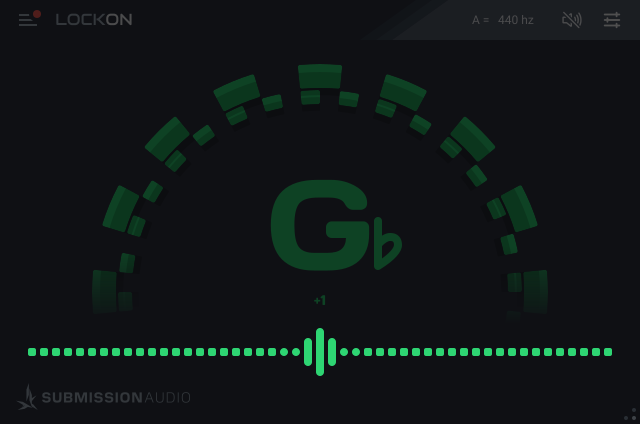
The display shows both a cent-based 'standard' LED array, and the revered 'strobe' mode simultaneously - providing the best of both worlds.
Specifications

Tuning Range: C0 - B8

Frequency Range: 14Hz - 8kHz

Supported Plugin Formats:

  • AAX
  • VST3
  • AU

Compatible Operating Systems:

  • Windows 10 or newer
  • macOS 10.13 or newer (Universal binary - supports both Intel and Apple Silicon natively)

Tested in Major DAWs:

  • Reaper
  • Logic
  • Pro Tools
  • Cubase
  • FL Studio
  • Live

Note Display

GUI

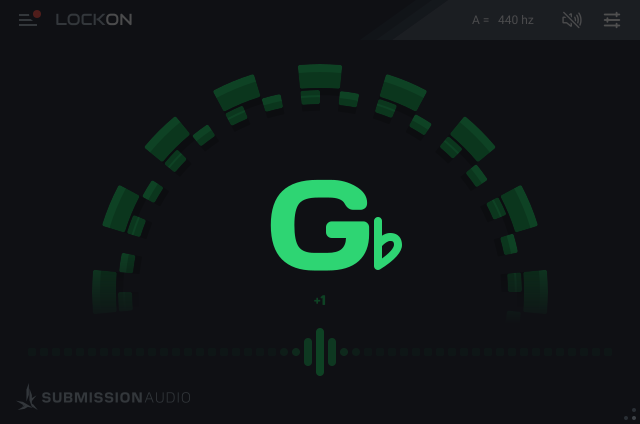
The Note Display is the centerpiece of LockOn, designed to identify and visually represent the nearest musical note, based on the detected signal pitch.

The displayed note becomes the reference point for the Cents Display, Bar Tuner and Strobe Tuner.

The Note Display will turn green as the signal pitch nears the desired tuning tolerance - providing a handy visual cue to aid in fine-tuning precision.

Strobe

GUI

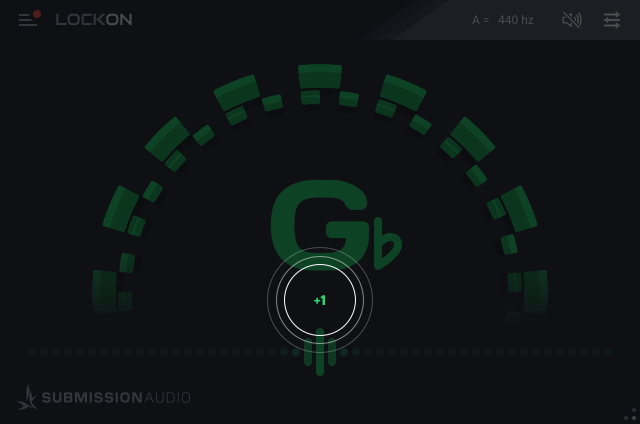
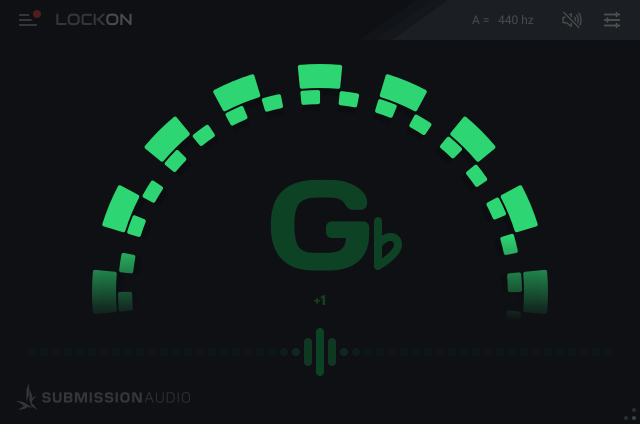
The Strobe Tuner display is among LockOn's innovative features. Drawing inspiration from beloved traditional strobe tuners, this display provides a visually-engaging mechanism to ensure perfect tuning.

The goal behind the strobe tuner is to stop the wheel from turning. So long as it's in motion, the signal pitch is not locked to the reference. The speed and direction of rotation provide an indicator at how far either flat or sharp the signal pitch is.

Bar Tuner

GUI

The Bar Tuner is the now-commonplace display preferred by many modern digital tuners. It denotes pitch in cents. Each line represents a single cent, with the center point representing the reference pitch.

If the indicator is left of center, this denotes that the signal is flat compared to the reference pitch, while a right-leaning indicator denotes a sharper pitch than the reference.

As the signal nears the reference pitch, the Bar Tuner will turn green to denote that it's entering the desired tolerance threshold.

The Bar Tuner can operate in either 'Fast' or 'Slow' modes - selected via the settings, shown by clicking the mixer faders in the top-right of the LockOn UI.

Cents Display

GUI

The Cents Display is the numerical equivalent of the Bar Tuner. It denotes how many cents flat, or sharp a signal is in comparison to the reference pitch.

Negative values denote a flat signal, while positive values denote a sharp signal.

Settings

GUI

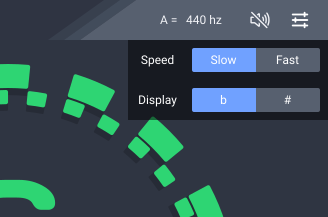
The Settings Menu is located in the top-right corner of the UI - denoted by the horizontal mixer faders. Within this menu:

  • Reference Frequency: Alters the tuner's foundation by adjusting the base calibration frequency. Default is A = 440Hz.
  • Mute Output: Silences the output.
  • Tuning Speed: Choose between 'Fast' and 'Slow' tracking speeds, to suit your preference.
  • Display Preference: Choose whether the display denotes sharps or flats, depending on your musical sensibility.

Best Practices

Tuning a guitar is as much about understanding your instrument as it is about precision. While our tuner is here to guide you, the following best practices will elevate the accuracy of your tuning:

  1. Tune Up, Not Down: When making adjustments, it's best to approach your target note from below, tuning upwards. This method helps prevent slippage, ensuring your string stays in tune for longer.
  2. Mind Your Hold: The manner in which you hold your guitar can subtly shift its pitch. Even the force applied while turning a tuning peg can influence the note by bending the neck ever so slightly. Always hold your guitar in its natural playing position and be gentle with the neck.
  3. Consistent Picking: The force of your pick or strum can influence the pitch of a note. If you tune with a soft touch but play with vigor, your guitar may sound sharp in performance. For best results, tune your guitar using the same picking intensity you plan to use while playing.
  4. Attack or Sustain: Get into the habit of tuning either to the initial attack-pitch of your instrument, or the resulting sustain-pitch. Depending on the performance you're tuning for, you should prioritize whichever of the two is more important to have in tune. If you play with vigor, your attack-pitch will be substantially higher than the resting pitch the note settles into.
  5. Fret with Precision: Inaccurate fretting, like pressing too hard or being off-center, can cause notes to skew sharp. If tuning for a specific section of a piece, consider tuning using the fretted notes to ensure they're spot-on during your performance.
  6. Intonation Check: Intonation is the consistency of your guitar's tuning across its entire fretboard. If open strings sound in tune but notes waver as you move up the neck, you may need to adjust your guitar's intonation.

Notifications

GUI

Stay updated and in-the-know with our 'Notifications' feature! Here's what you need to understand:

Product News and Sales: Occasionally, a notification might pop up in the GUI to let you know about new products or ongoing sales that could interest you. You also receive exclusive discounts.

It's our simple way to keep you posted, ensuring you don't miss out on anything crucial or beneficial. We will only share information about our own products. This is a line of communication between you and SubMission Audio, third parties will not be involved.

This feature is only present in the free version of LockOn.